

Connect your launch monitor
Play real courses in 3D, or work on the practice range, live from your launch monitor. Each shot lands where your monitor measured it.
What you need
A launch monitor and a connector program
On your computer, a program that sends each shot in the open OpenConnect format: your monitor's own software, or a connector program you download and set up yourself. A Nova needs neither.
A Windows or Mac computer
Sim2Course Bridge runs on Windows 10 or 11 and on Mac, on the same computer as your connector program. A Nova connects to the Sim2Course app on iPhone instead.
A free Sim2Course account
The practice range's Live launch monitor is in the free plan. Playing a 3D course from your simulator is part of Sim2Course Pro.
Two ways to connect
On the computer in your bay
Windows or Mac, with the connector program and Sim2Course Bridge on the same computer.
- 01Download Sim2Course Bridge below, unzip it and open it. The first time, it opens Sim2Course to link the computer to your account: check the code matches and tap Link.
- 02In your connector program, set the simulator address to 127.0.0.1 and the port to 921.
- 03Keep the bridge open while you play, and open sim2coursegolf.com in a browser on that computer, signed in to your account.
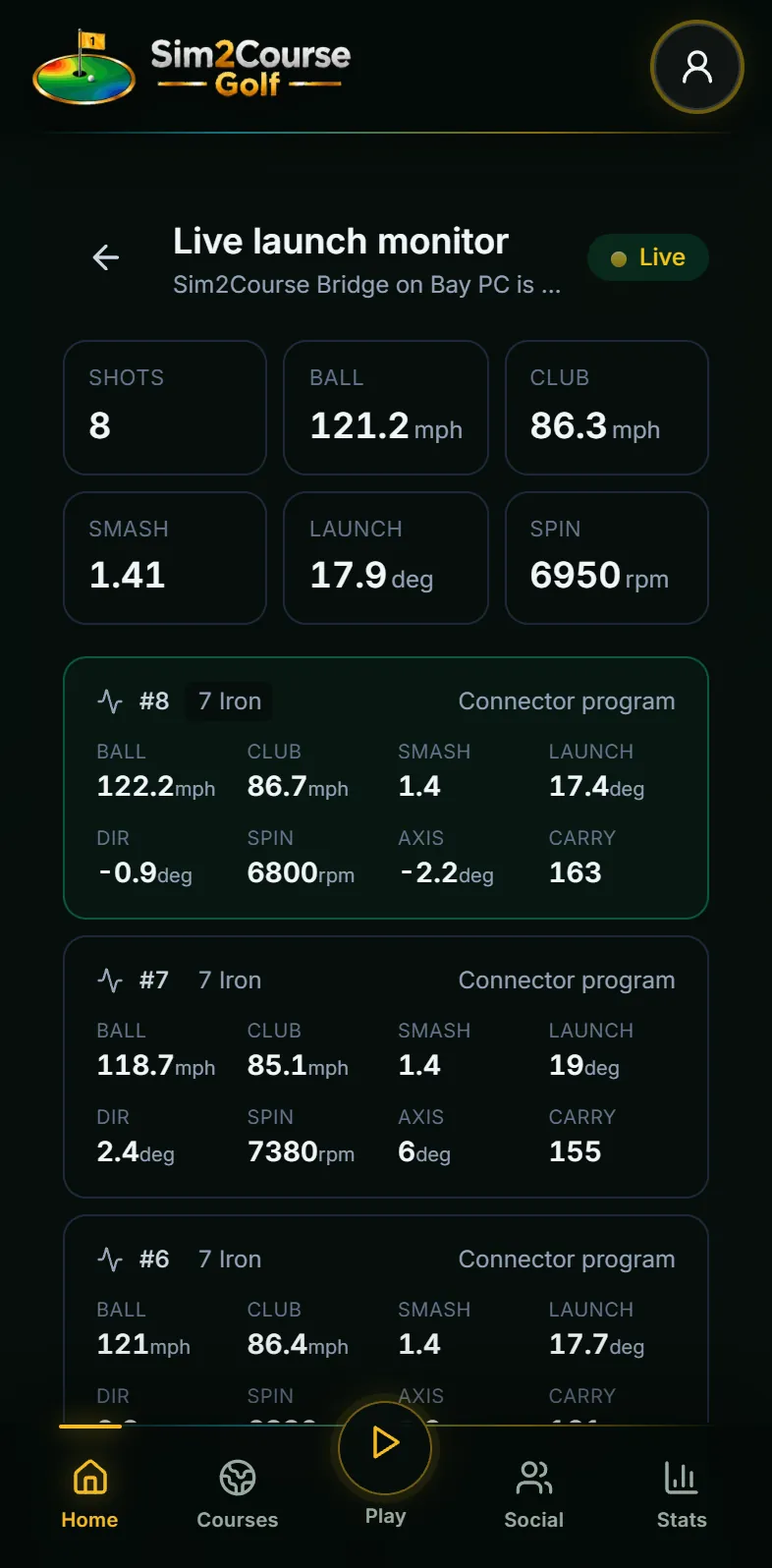
- 04For the range: Practice range, then Live launch monitor. For a course: Play a round, Indoor, Play from your launch monitor.
Sim2Course Bridge 1.2.0. Free, one program, no installer.
Nova, straight to iPhone
No computer and no connector program.
- 01Put your iPhone on the same Wi-Fi as the Nova.
- 02In the Sim2Course app, open Live launch monitor, or Play a round, Indoor, Play from your launch monitor. The app finds the Nova and connects by itself.
About connector programs
- Sim2Course does not make, include or install anyone else's connector program. Sim2Course Bridge is our own program, and it only receives shots.
- Get a connector program yourself, from its maker or its project page, and follow its own setup. Then point it at Sim2Course Bridge: simulator address 127.0.0.1, port 921.
- If your monitor's maker sells use with other simulator software as part of a plan, have that plan first. We do not support programs that unlock paid features, get around a lock or pose as other simulator software.
- If you use a third-party connector, you're responsible for following your launch monitor maker's terms.
Launch monitors that should work
Where a monitor's maker sells use with other simulator software as part of a plan, you need that plan, and we name it next to the monitor. We list no route that gets around a paid plan.
Straight to the Sim2Course app
- Open Launch Nova
- Directly to the Sim2Course app on iPhone, on the same Wi-Fi. No computer or connector program.
Works through the maker's own software
- Square Golf
- Square Golf's own PC connector program, which sends shots in the open format, on the same computer as Sim2Course Bridge.
Works through a community connector you install yourself
- Garmin Approach R10
- A connector program on your computer that connects to the R10 over Bluetooth.
- Rapsodo MLM2PRO
- A connector program on your computer.Needs Rapsodo's Premium membership, which is where Rapsodo includes use with other simulator software.
- Uneekor (EYE MINI, EYE MINI LITE, EYE XO and other models)
- A connector program that reads Uneekor's own View software on the same computer.Needs Uneekor's Pro membership or higher, which is where Uneekor includes other simulator software.
- FlightScope Mevo+ and Mevo Gen2
- A connector program on your computer that connects to the monitor over its Wi-Fi.
- SkyTrak and SkyTrak+
- A connector program that works alongside SkyTrak's own software on the same computer.Needs SkyTrak's Essential plan or higher, which is where SkyTrak includes other simulator software.
Another monitor? If its own software, or a connector program you get yourself, sends shots in the open OpenConnect format, runs on the same computer as Sim2Course Bridge and lets you set the simulator address and port, it should work the same way. Monitors that only send shots to their maker's own software, or to one named simulator program, cannot connect yet.
Product names are the property of their owners. Sim2Course is not affiliated with or endorsed by them.
If it does not connect
Write to support@sim2coursegolf.com with your monitor and connector program. A person answers.
- Nothing arrives
- On the computer, open http://localhost:8787. Sim2Course Bridge lists every shot it receives there. Shots on that page but not in Sim2Course: reload Sim2Course. Nothing on that page: check the address and port in your connector program, and that it runs on the same computer as the bridge.
- Also play on other simulator software?
- Answer Yes when Sim2Course Bridge asks, and set your connector program's port to 9211 instead of 921. Your other software keeps working as before, and each shot is saved to your Sim2Course stats too.
- Port 921 is in use
- Only one program can listen on it. Close the other simulator software, or use port 9211 as above.
- Windows or Mac asks first
- Windows may say it protected your PC: choose More info, then Run anyway. On a Mac, open it once from System Settings, Privacy & Security, Open Anyway.
- Phones and tablets
- Connector programs send shots to Sim2Course Bridge on your computer, not to a phone or tablet. A Nova is the one monitor that connects straight to the iPhone app.
- Importing instead
- Prefer to hit first and look later? Import the session file your monitor exports: CSV, Excel, JSON or text.
Get the app.
Free to download for iPhone and Android. Apple Watch app included.
